

If you’ve ever found yourself manually updating names and titles in After Effects in order to create dozens of lower thirds, this resource is for you. The AV Coach has created a free script and template combo that lets you batch render custom lower thirds using a simple CSV file. Perfect for interviews, events, or educational content.
What It Does
This solution automates the process of generating rendered lower thirds in Adobe After Effects based on name/title pairs in a CSV file. Each line in the CSV triggers an update to text layers and generates a high-quality .mov file with alpha.
How It Works
Folder & Comp Setup:
- The main comp is called
L3 GFX. - Inside it is a nested comp called
BUILD. - Inside
BUILDare two nested comps namedNAMEandTITLE. - Each of those contains a single editable text layer.

Script Behavior:
- Prompts you to select a CSV file with headers:
Name,Title - Prompts for an output folder
- Loops through each row of the CSV, updates the
NAMEandTITLEcomps - Renders the
L3 GFXcomp to a.movwith alpha, using the name as the filename


CSV Format
Name,Title
Jane Smith,Director of Photography
John Doe,Executive Producer
Download Includes
- After Effects project file (compatible with AE 2025 and later)
- JavaScript (.jsx) script to run inside After Effects
- Sample CSV file
Instructions
- Open the AE project file
- Run the
.jsxscript in After Effects via File > Scripts > Run Script File… - Select your custom CSV
- Choose an output folder
- Sit back and let After Effects do the work

Bonus Tips
- You can customize the font, color, or animation in the
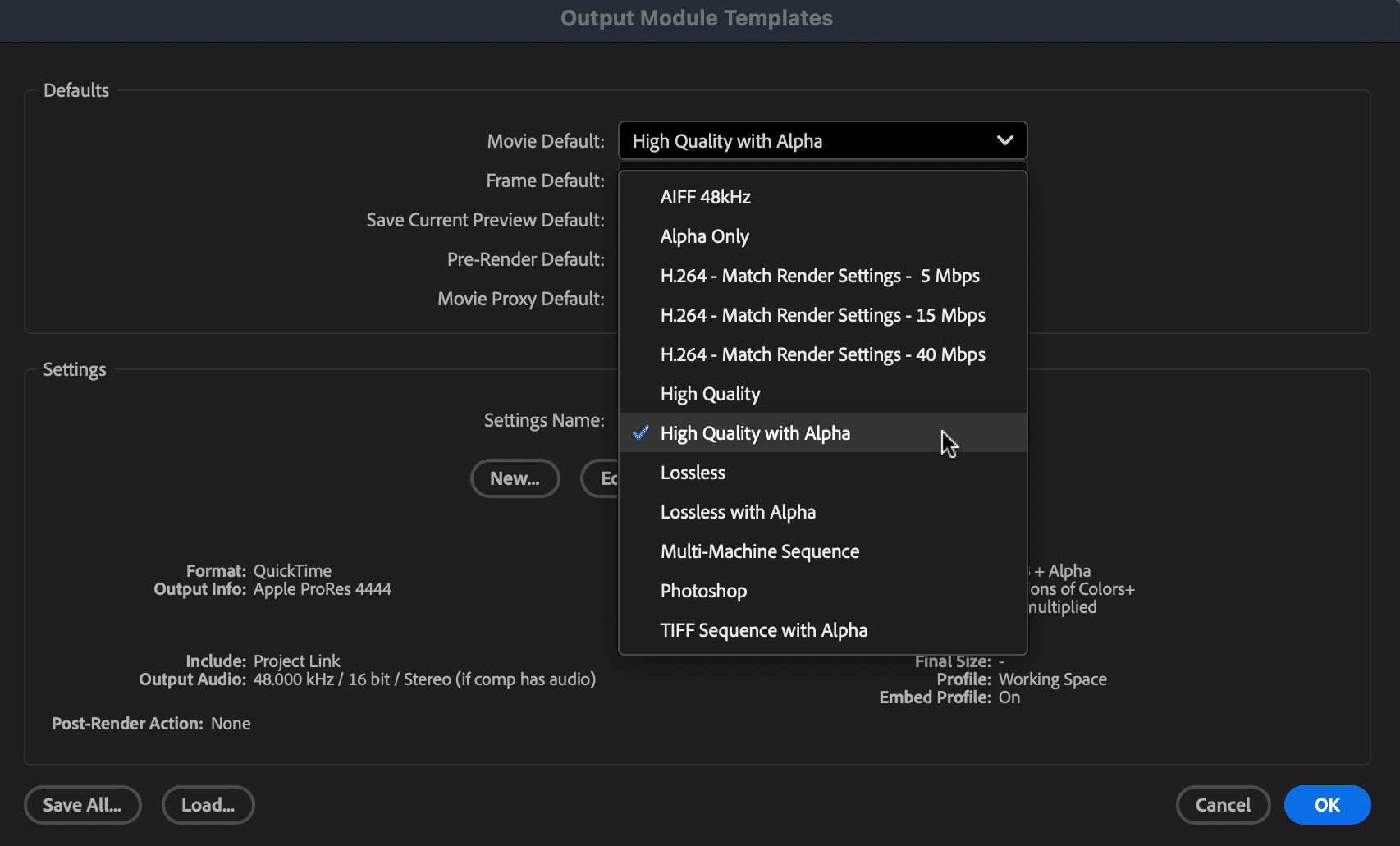
NAMEandTITLEcomps and they will apply across all renders. - This script uses a high-quality preset with alpha (QuickTime .mov), but you can change that in the Output Module settings.
- Do not use a comma in the name/title field itself (for example, “Executive Director, Organization Name”) instead, reframe from using a comma and instead use a different separator that won’t break the parser such as a hyphen (for example, “Executive Director – Organization Name”)
Use Cases
- School news shows
- Corporate interviews
- Speaker introductions
- Mass event video packaging

How the Script Works
This script automates batch rendering of lower-thirds using a CSV and a pre-built After Effects project structure. It’s ideal for projects where each name and title is stored in its own nested comp and needs to be swapped out dynamically for rendering.
Project Structure Overview
To use this script, your AE project should be organized like this:
- Main Comp: L3 GFX
- Contains a nested comp called BUILD
- BUILD Comp
- Contains two nested comps: NAME and TITLE
- NAME Comp
- Contains a single Text Layer that displays the name
- TITLE Comp
- Contains a single Text Layer that displays the title
Step-by-Step Script Functionality
- Prompting the User:
- Asks the user to select a CSV file with Name,Title headers.
- Prompts for an output folder for the renders.
- Finding Comps:
- The script searches recursively through the project panel to locate the main comp (L3 GFX), then finds its nested comp (BUILD), and finally digs into BUILD to find the NAME and TITLE comps.
findNestedComp(l1Comp, "NAME");
This allows flexibility: your comps can be in folders — they just need to follow the naming structure.
- Finding Text Layers:
- Once NAME and TITLE comps are found, the script identifies the first text layer in each. It assumes there’s only one text layer per comp, which simplifies targeting.
nameTextLayer.text.sourceText.setValue(data.name);- Parsing CSV Data:
- The script reads the CSV file line by line, skipping empty lines or malformed entries, and stores each row as an object { name: …, title: … }.
- Updating & Rendering:
- For each entry in the CSV:
- It updates the text values inside NAME and TITLE comps.
- It adds the L3 GFX comp to the render queue.
- Sets a sanitized filename using the name (e.g., “Jane_Doe.mov”).
- Renders immediately and removes the job after completion. This ensures each render gets the correct text content.
- For each entry in the CSV:

Important Notes
- Do Not Use Essential Graphics: This script bypasses the EG panel entirely. Instead, it updates the text directly within the nested comps.
- No Need to Duplicate Comps: Because it renders each version one at a time and resets the text, you avoid bloating the project with duplicates.
- High-Quality with Alpha: The output module is set to export .mov files with alpha support for transparency overlays.

Comments are closed